Interval shooting
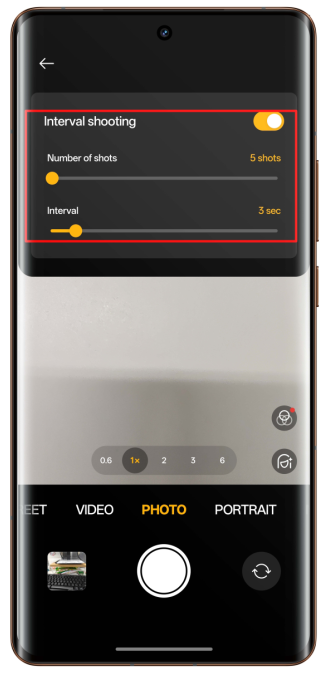
Sets the number of shots and interval time in the camera settings and generates continuous photos in the album after shooting, which can be saved as GIF animations.
Setting Path:
realme UI 7.0 & 6.0 & 5.0: Enter Camera > Settings in the upper right > Interval shooting > Turn on interval shooting, Set the number of shots and interval time.
realme UI U Edition (Android 14): Enter Camera > Settings in the upper right > Interval shooting > Turn on interval shooting, Set the number of shots and interval time.
realme UI 4.0 & 3.0 & 2.0 & 1.0: Not supported
realme UI R & S & Go & T Edition: Not supported
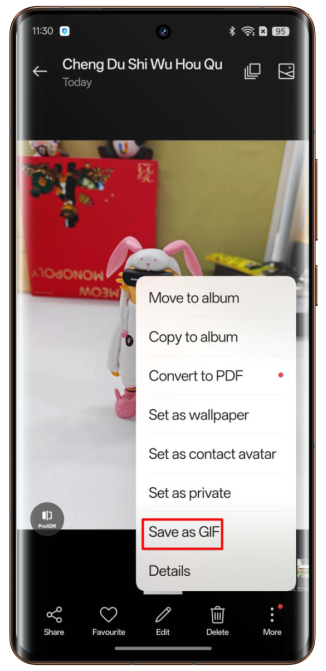
How to convert interval photos to GIFs?
Path:
realme UI 6.0 & 5.0 Enter the album, select Interval photos > More > Save as GIF.
realme UI U Edition (Android 14): Not supported
FAQ
Q: How many interval shots can I take at once?
A: You can take up to 50 shots.
Q: What is the longest interval time in interval shooting?
A: 10 seconds
Burst mode
realme UI 6.0 & 5.0: Enter Camera > Settings in the upper right > Touch and hold shutter button > Select Take burst photos, then you can long press the shutter button to take continuous shots.
realme UI 4.0 & 3.0 & 2.0 & 1.0: Long-press the shutter button to take continuous shots.
realme UI U & T Edition: Long-press the shutter button to take continuous shots.
realme UI R & Go & S Edition: Enter Camera > More > Select Burst, then click the shutter button to take continuous shots
Related Articles:
How to set the basic functions of the camera
How to use time-lapse in the camera