Problem phenomenon:
1. After the realme laptop is upgraded to a major version of the system, the fingerprint cannot be unlocked, and it prompts "There is a problem, please try again";
2. After re-entering the fingerprint, the fingerprint option on the lock screen login interface disappears;
3. When continuing to add fingerprints, it will prompt "Sorry, there is a problem".
Problem causes:
This phenomenon is due to changes in security-related configurations/components after the Windows system is updated.
Solution:
After deleting the PIN, reset the PIN and fingerprint
1. After using the account password or PIN code to enter the system, click the Windows icon > Settings icon > Account > Sign-in options > Windows Hello PIN > Remove PIN, the PIN code will be removed after the account password is verified.
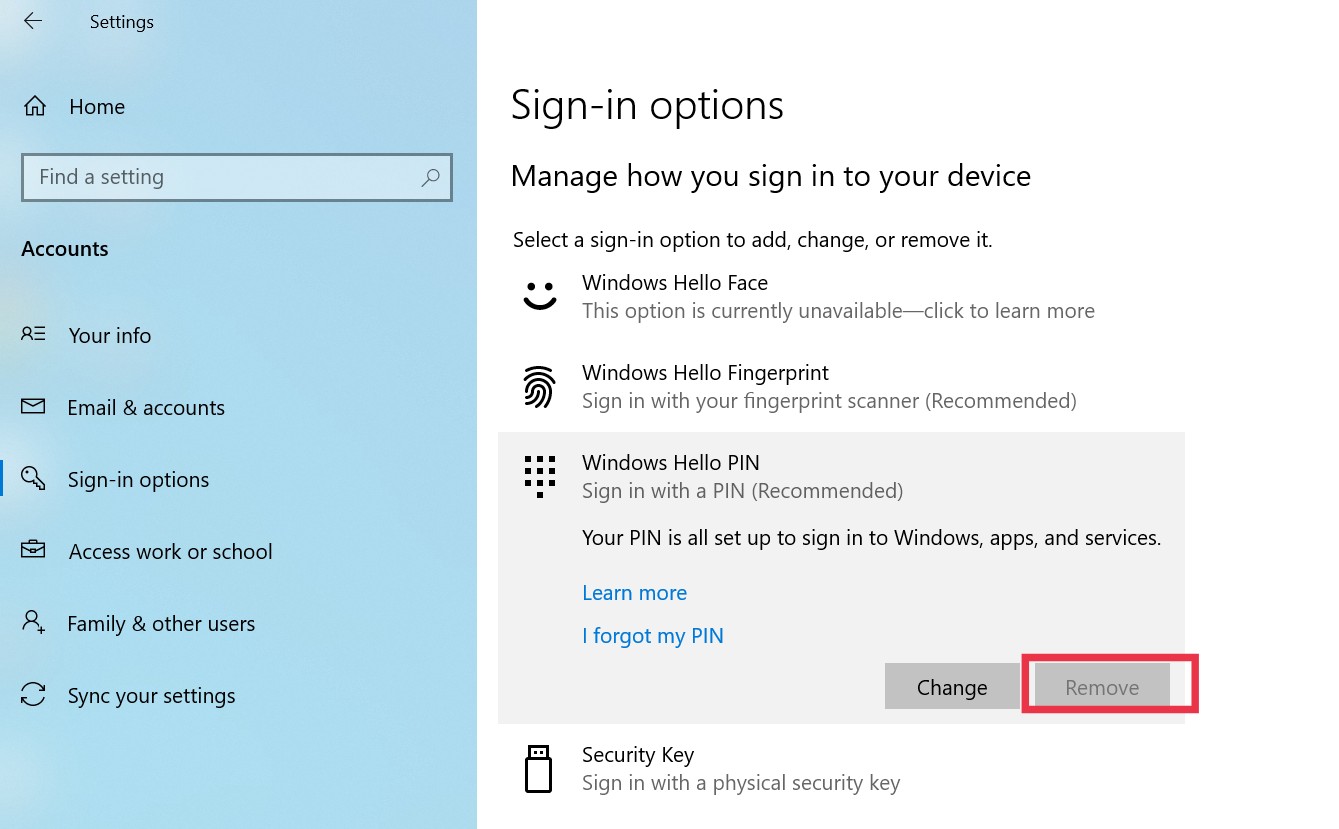
2. On the login options interface, reset the PIN code and fingerprint.
Note: If the problem still exists, it is recommended that after backing up your personal data, restart and press F8 continuously to enter safe mode, select Troubleshooting, and restore factory settings.