realmeparts

How do I set up automatic updates for a specified time period in Windows

1,851 views
0 likes
Official Source
laptop

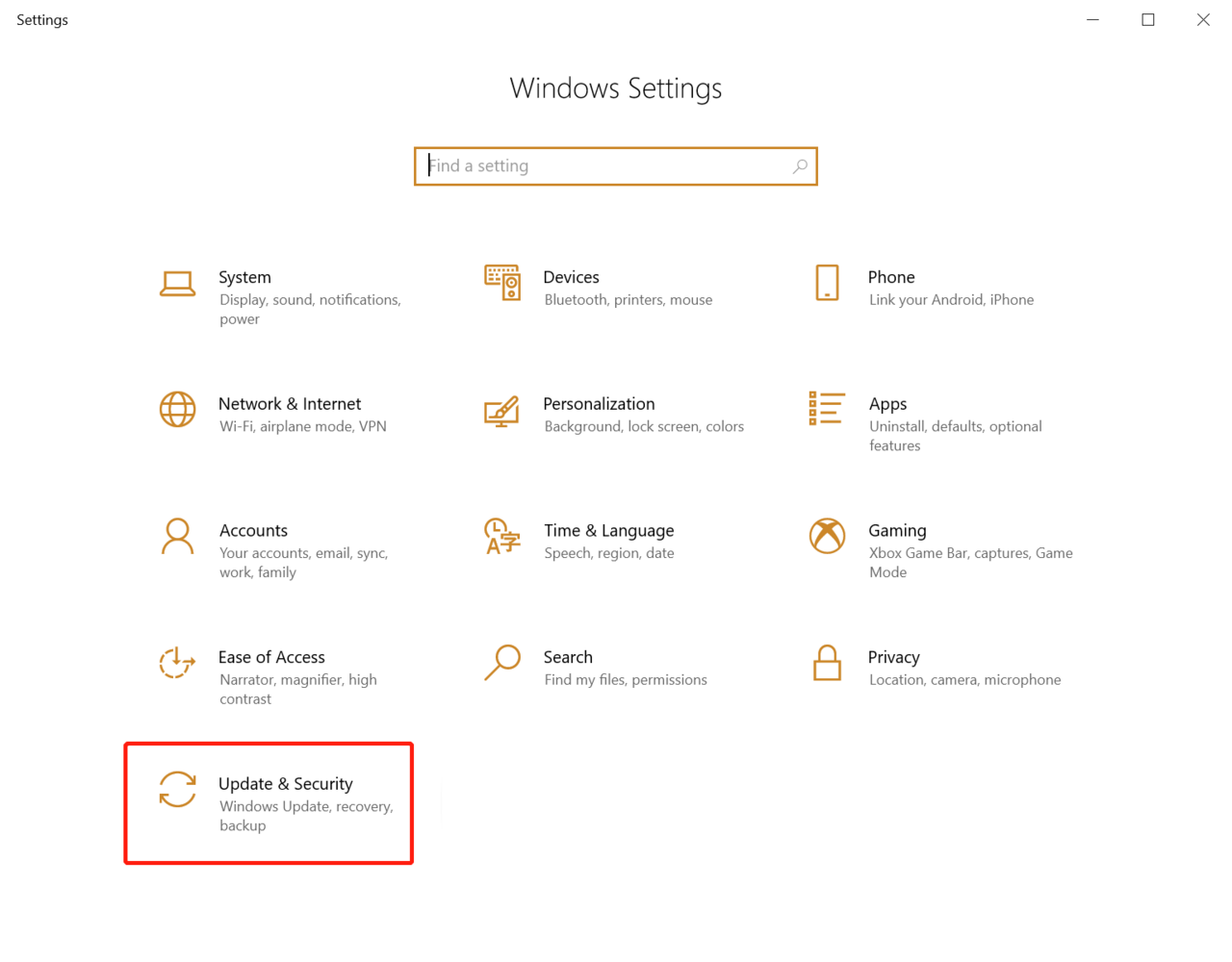
1. Click the Windows icon Settings icon and select "Update & Security".
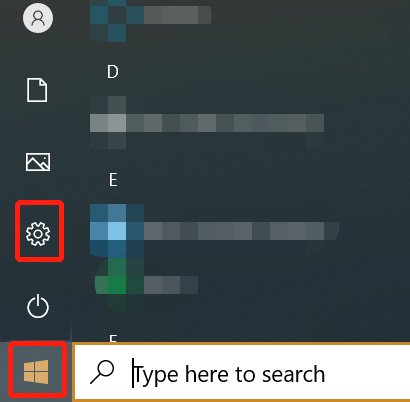
Click the Windows icon


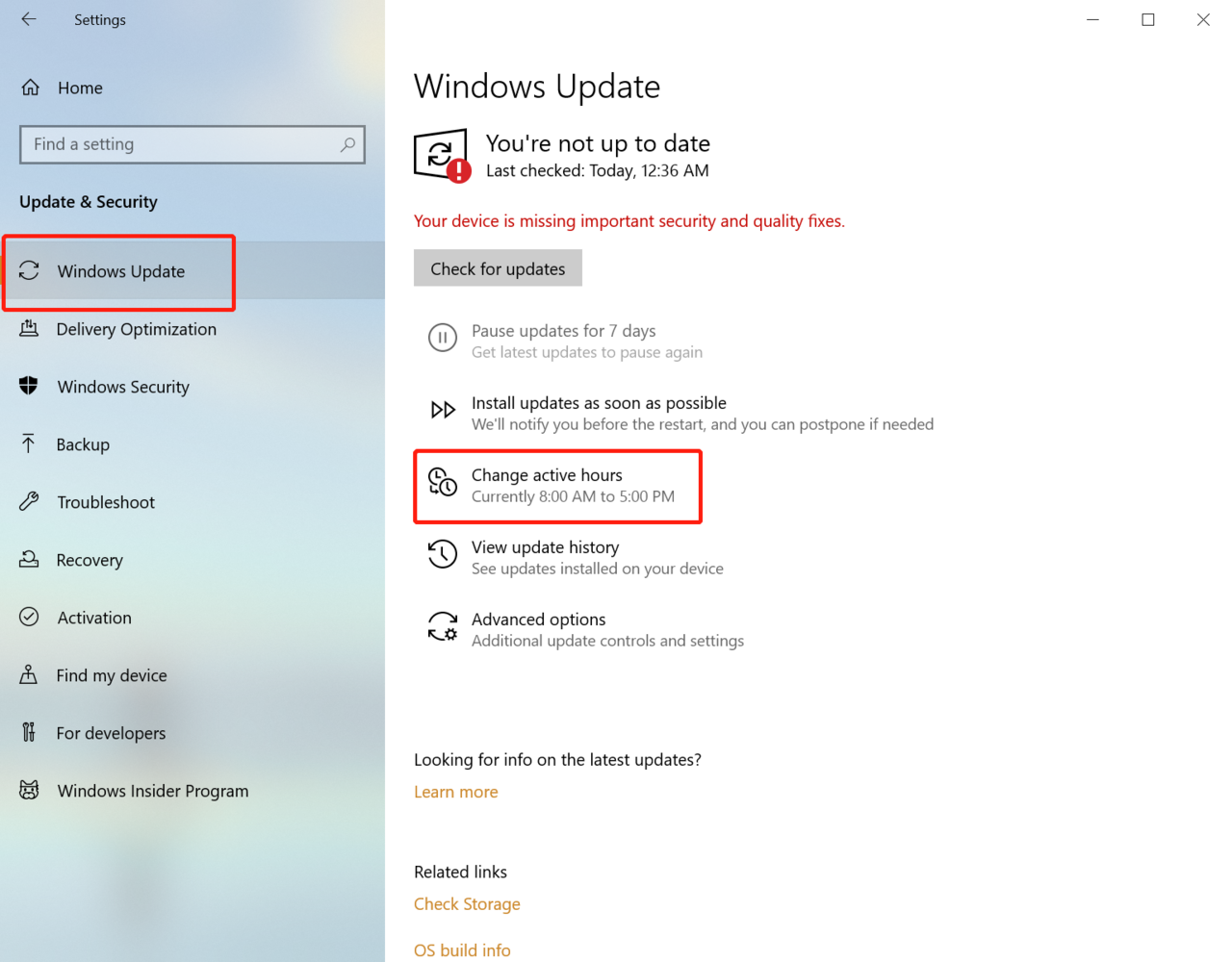
2. Click Windows Update Change active hours.


3. ClickChange, set the start and end time of using the device in the Change active hours interface, and click Save. Windows will not automatically restart the update at that time. You can also turn on the "Automatically adjust active hours for this device based on activity" switch, which will automatically adjust the update time of the device according to your use.
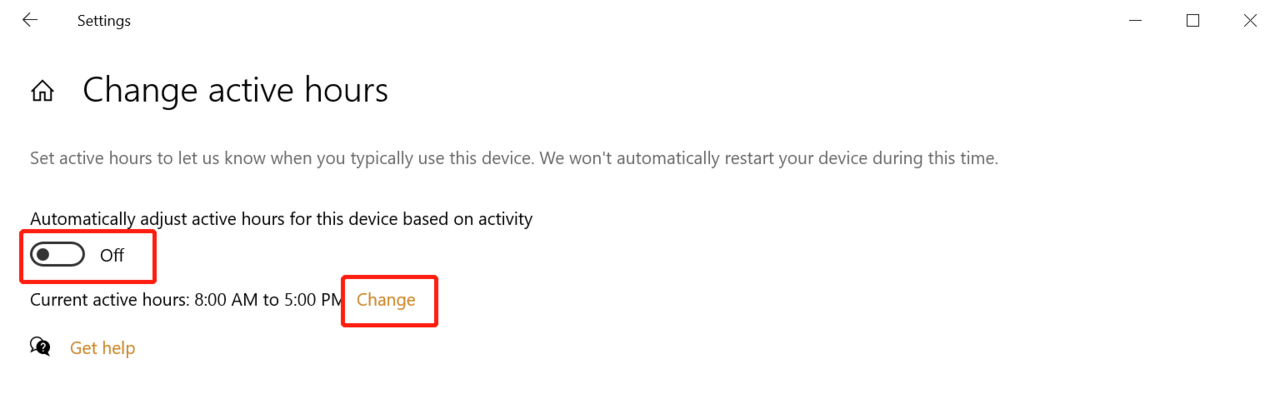
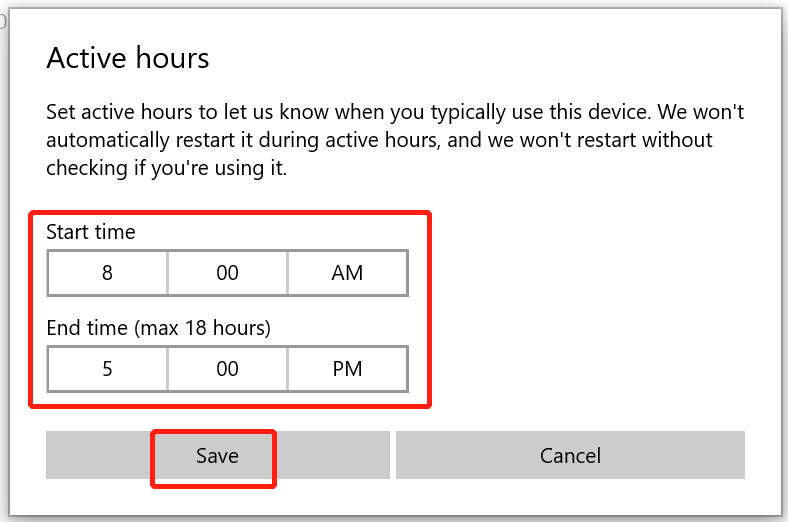
change active hours

Active hours


Article Reference

Official Realme documented guide #2042649

View on realme.com

Related Topics

#Windows update time schedule#schedule windows update for specific time#manage windows update schedule

Was this article helpful?

Your feedback helps us improve our support content.

Still need help?

Explore more articles or contact our customer support team for personlized assistance.

Visit Support Hub