You can save names, email addresses, phone numbers, and more in Google Contacts.
Nowadays, it is rather difficult to remember everyone's phone number to call them. In the past, when we saved a contact to phone memory, it would be difficult to retrieve the contact if a phone was lost or a technical failure occurred.
The Add/Save contact in Google Contact is a highly convenient way to store and keep our contacts and access them from any phone. We can save all our contacts to Google Contacts so they sync with our Gmail ID, which can be accessed from any phone using our Gmail ID and password.
Setting path
To enable the option, please follow the steps below:
Method 1: Open Contact App, Click on > at bottom right side > Enter Contact Detail > Click to save (We can save to Gmail ID or device as per the choice)
Method 2: Open the Dialer in the realme Phone > Click on contact > Create new Contact > Enter Contact Detail > Click Save (We can save to Gmail ID or device as per the choice)
First Name
Last Name
Company
Phone
Mobile
Label (Mobile/ Work/ Home / Main/Work Fax/Home Fax/Pager/ Other)


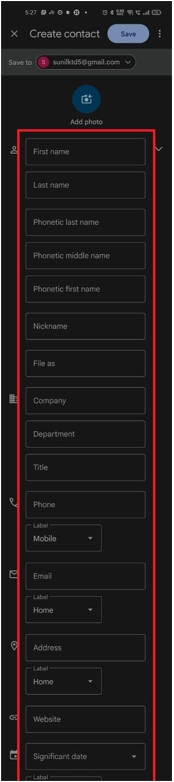
*Note: Click on more fields so we can add more details like Nick Name, Title, Address, etc.