Problem phenomenon:
After returning to the Windows 10 version from the Windows 11 preview version, the Windows 11 download is still prompted in Windows Update.
Problem causes:
1. Failed to close the Windows Insider Program;
2. After closing the Windows Insider Program, the Windows update information is not refreshed locally.
Solution:
Method 1: Stop getting the preview version
1. Open Settings > Update & Security > Windows Insider Program, find "Stop getting preview builds", and select "Open".

2. Close the page and reopen the "Windows Insider Program", and click "Restart Now".

3. Open the "Windows Insider Program" again, and restoring the initial interface means the shutdown is successful.

Method 2: Unlink the Windows Insider Account
1. Open Settings > Update & Security > Windows Insider Program, find "Windows Insider Account", and select "Unlink".
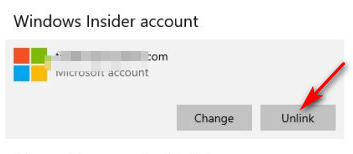
2. Open Settings > Update and Security > Windows Update > Check for Updates, and no longer prompts for Windows 11 to download. This indicates that the return to the Windows 10 version was successful.
Method 3: If Windows 11 is still prompted to download after trying the above methods, please click "Pause update for 7 days", and then click "Continue update" to refresh the update information.
