realmeparts

How to enable/disable transparency effects and animation effects in Windows 11

2,334 views
4 likes
Official Source
laptop

Operation steps:

1. In the Settings app, select the "Accessibility" option from the sidebar. Now, on the Accessibility settings page, choose the "Visual Effects" option.

"Settings" >> "Accessibility" >>  "Visual Effects"
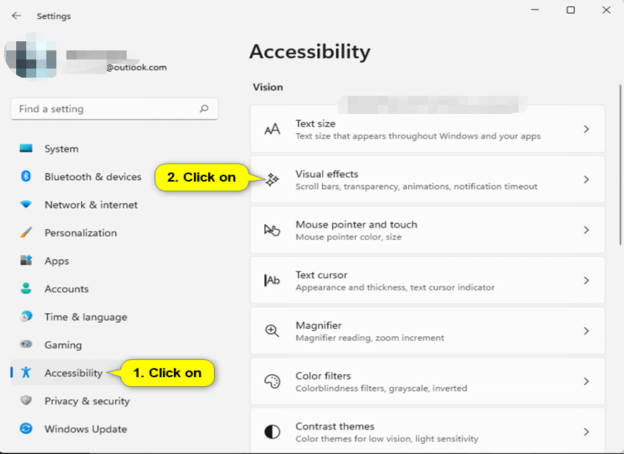
Go to Accessibility Option


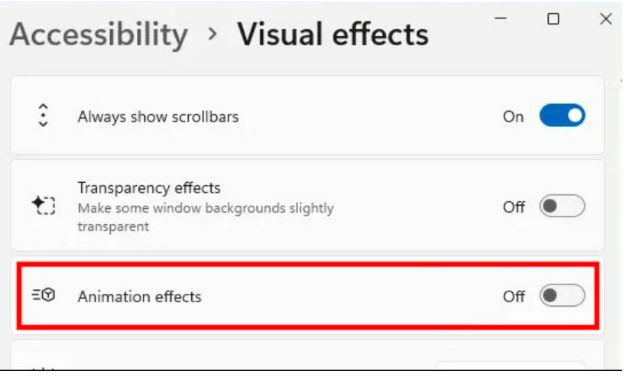
2. In the interface, you can see the switches of "Animation effects" and "Transparent effects". Enable & Disable as per the requirements.

Article Reference

Official Realme documented guide #2042412

View on realme.com

Related Topics

#transparency#animation effects#enable/disable transparency effects Windows 11#turn on/off transparency Windows 11#improve Windows 11 performance

Was this article helpful?

Your feedback helps us improve our support content.

Still need help?

Explore more articles or contact our customer support team for personlized assistance.

Visit Support Hub