realme laptops support sharing a mobile hotspot to other devices, and a mobile hotspot can be shared via WLAN or Bluetooth.
1. WLAN hotspot sharing
Note: Connected via WLAN, up to 8 devices can be connected.
1.1 First, make sure that the realme laptop is connected to an available network.
1.2 Tap Start > Settings > Network & Internet > Mobile Hotspot.
1.3 Click Edit to edit the network name, password, and frequency band, and click Save when finished.
1.4 Tap to turn on the mobile hotspot.
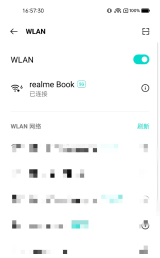
1.5 Turn on the device to be connected to the hotspot, turn on WLAN, and find the network name.
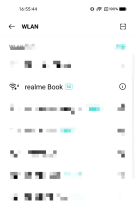
1.6 Click the set network name and enter the password to connect.
2. Bluetooth hotspot sharing
Note: Sharing the network via Bluetooth only supports connecting up to 7 devices.
2.1 First, please confirm that the realme laptop is connected to an available network.
2.2 Tap Start > Settings > Devices > Bluetooth.
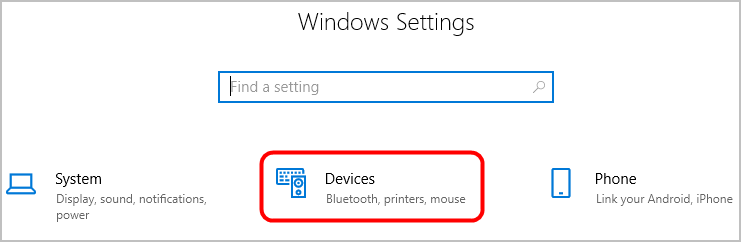
2.3 Click to turn on Bluetooth, you can view the Bluetooth name of the device below.
2.5 Tap Start > Settings > Network & Internet > Mobile Hotspot, turn on the mobile hotspot. Select share over "Bluetooth"
2.6 Open the device that needs to be connected to the Bluetooth network, open Settings > Bluetooth. Find the set Bluetooth name, click Connect, and select Pair in the pop-up pairing window.
2.7 Select "Yes" in the pairing device window of the realme laptop pop-up window.
2.8 Click on the details button of the paired device and turn on the Internet Access to access the network.