Problem phenomenon:
Upgrading Windows 11 system prompts that the system disk must be 64GB or larger.
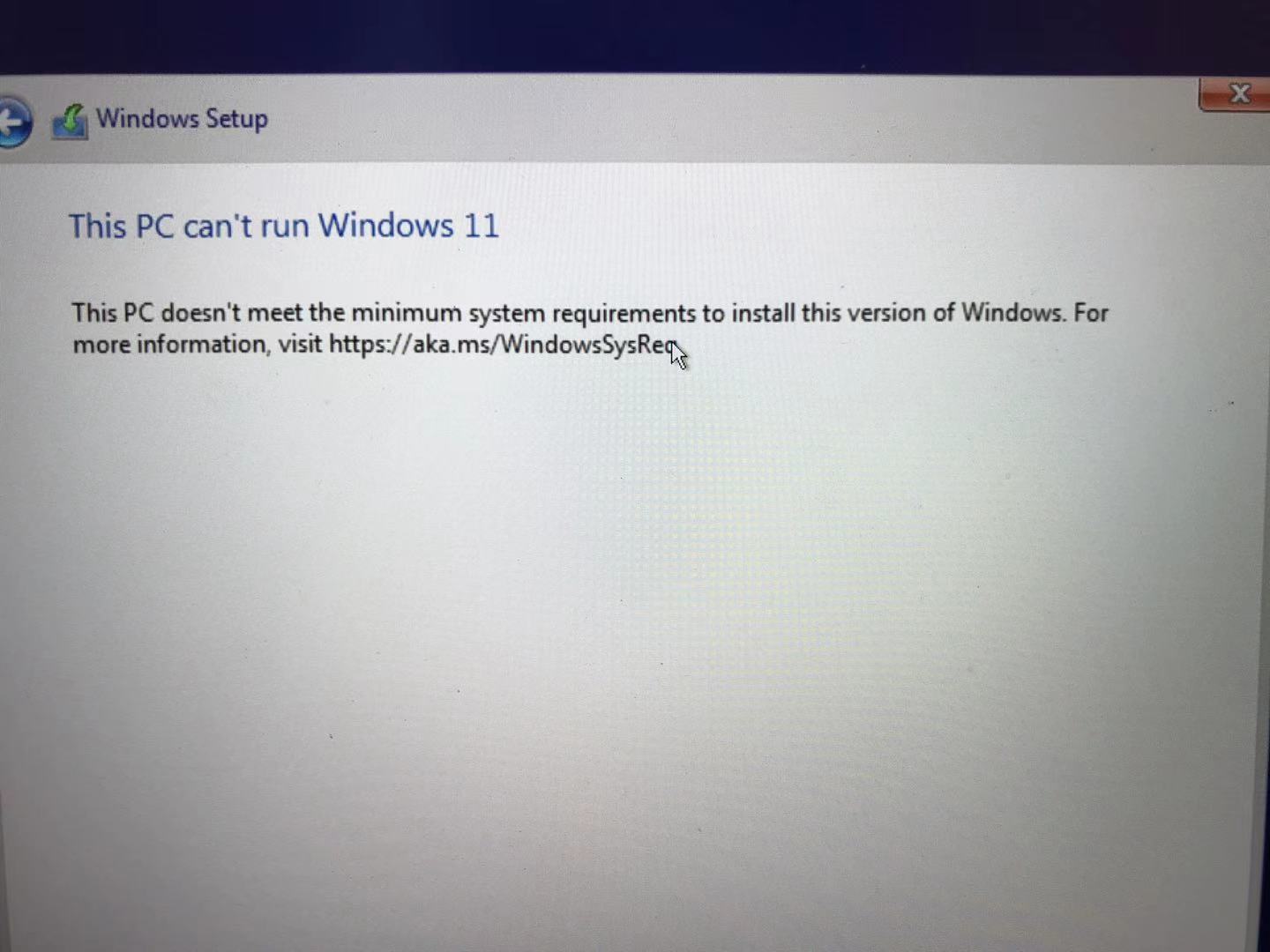
Problem cause:
Microsoft requires that devices upgrading to Windows 11 must have a system disk of 64GB or larger.
Solution:
1. Clean up the system disk and clear some irrelevant or unnecessary files.
2. Expand the system disk
Proceed as follows:
(1) Find This PC on the desktop, right-click, and then find Manage.
(2) Go to Computer Management, find Storage, and click Disk Management in Storage.
(3) Select a disk D or E, right-click, Delete Volume to delete it. It should be noted that: after deletion, all content and data in the D drive or E drive will also be deleted, please back up your personal data in advance.
(4) Select the C drive, right-click, select Extend Volume, and then click Next.
(5),Enter the size you want to set in Select Space Amount, and click Next to complete.
It should be noted that: ensure that the Total Volume Size is greater than 64G (65536MB)