Here's how you increase the paging file size to eliminate the virtual memory error message.
For Win 10:
1. Head to Control Panel > System and Security > System.
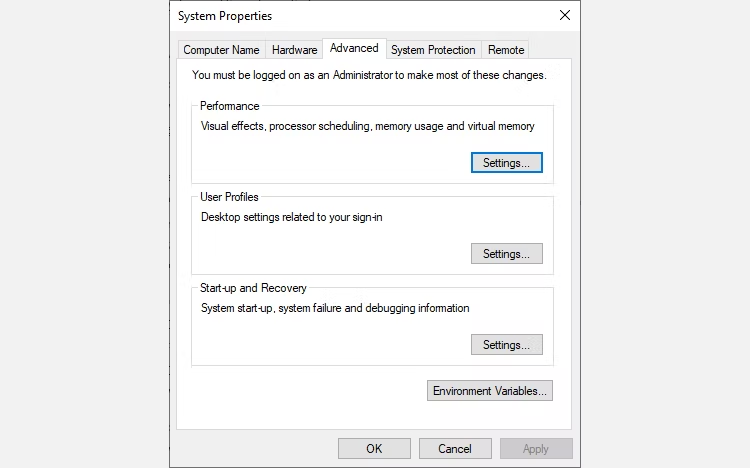
2. Select Advanced System Settings to open your System Properties. Now open the Advanced tab.
3. Under Performance, select Settings. Open the Advanced tab. Under Virtual memory, select Change. Here are your Virtual Memory options.
For Win 11:
Please note that on Windows 11, you can take a less circuitous route to your Advanced System Settings.
1. Press Windows key + I to open the Settings app.
2. Head to System > About.
3. Select Advanced system settings.
4. Under Performance, select Settings. Open the Advanced tab. Under Virtual memory, select Change. Here are your Virtual Memory options.
system properties advanced tab.
For both Windows 10 and Windows 11, the default option is to Automatically manage paging file size for all drives. Uncheck this to enable the currently greyed-out section below.
Select the drive you want to edit the paging file size for. Usually, this is your C: drive.
Now, select Custom size. Set the Maximum size you want for your paging file, following the recommended size for your system.Remember, Windows restricts the paging file size to three times the size of your installed RAM. This is to ensure system stability.
Set the Initial size to the Currently allocated size (found below).
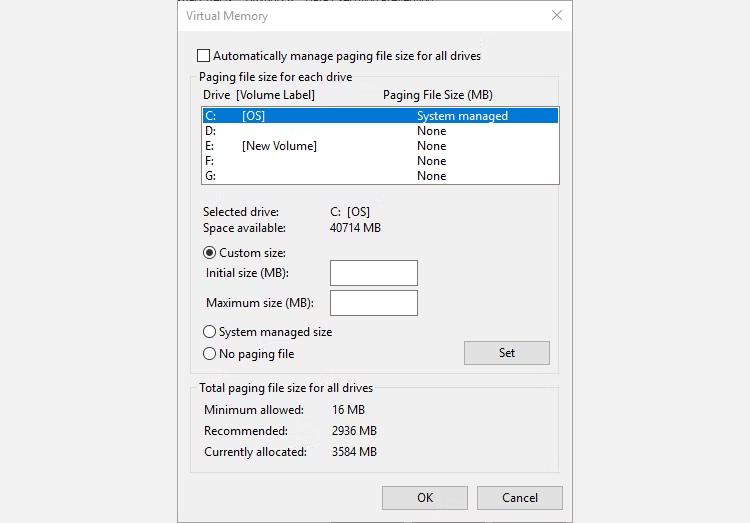
Click Set, followed by OK. You have successfully increased your system's virtual memory size.
Please note that Windows doesn't display a warning for paging file (virtual memory) size increases, but system alerts are shown for decreases.
A sudden decrease could cause system damage.
Related Articles: