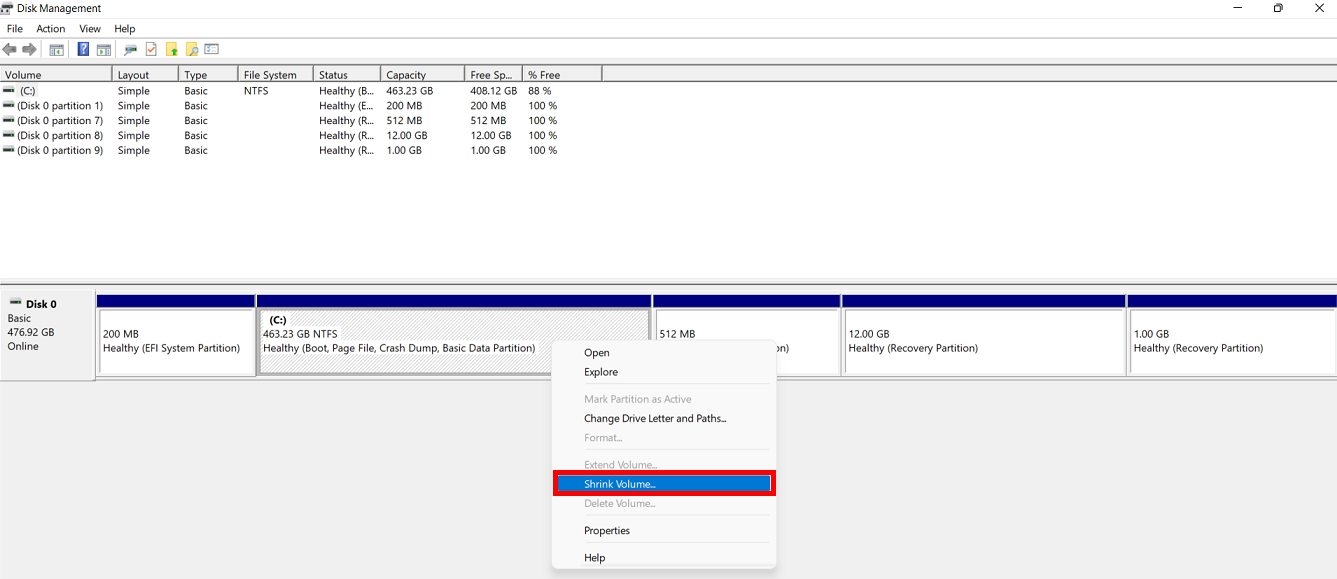
According to the realme laptop, there are two disk partitions. Take C drive and D drive as an example.
Specific steps are as follows:
1. Back up all important personal data on the C and D drives. Otherwise, it will cause data loss. (You can choose a personal U disk, mobile hard disk, network disk, etc.)
2. Right-click the Windows icon on the desktop and click Disk Management.
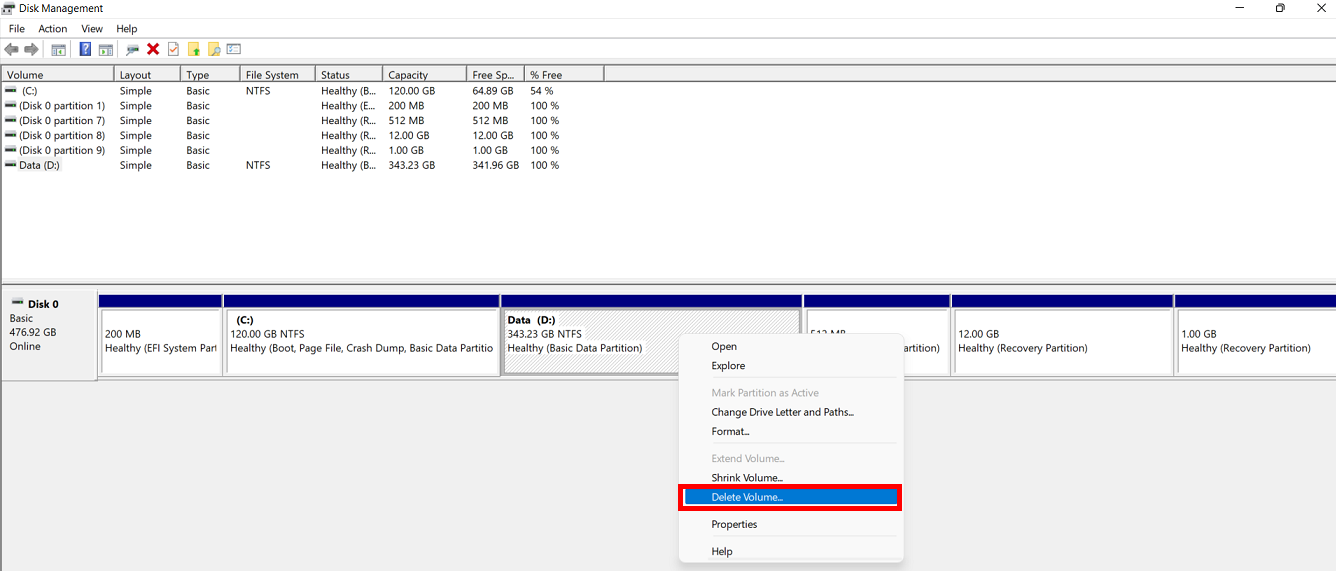
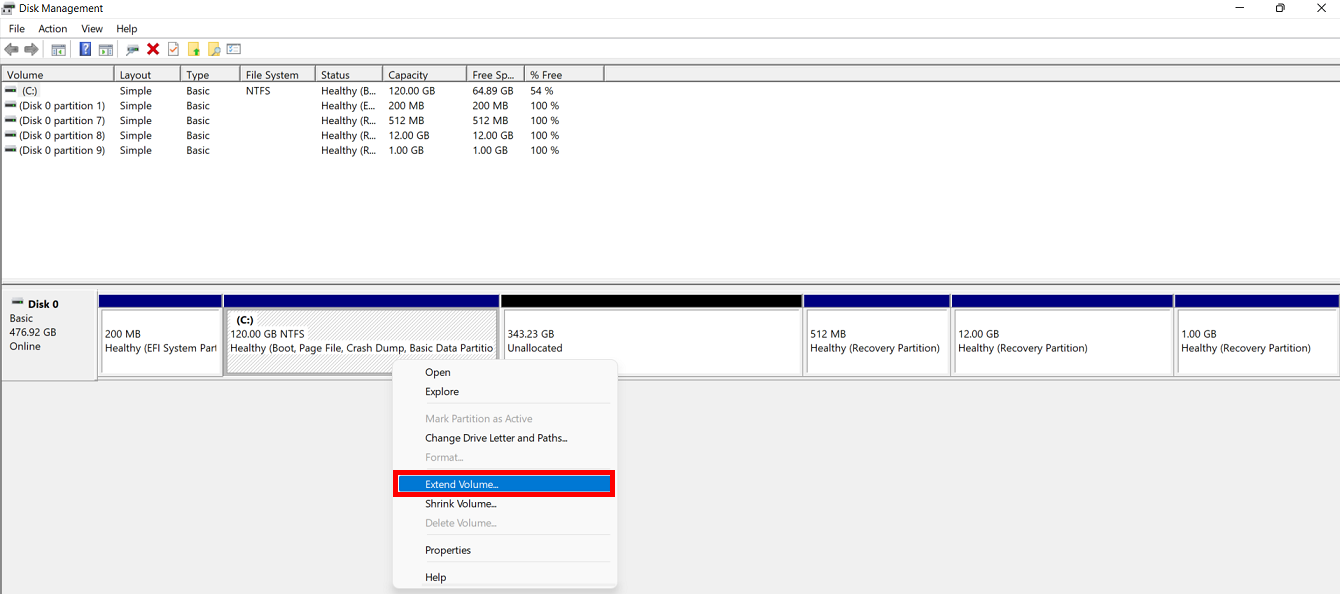
3. In the pop-up disk management window, select D drive, right-click, select Delete Volume, and click OK to delete. After deleting the volume, an unallocated space appears. Select the C drive, right-click and select Extend Volume. In the New Simple Volume dialog box that pops up, follow the prompts to complete the expansion. At this point, the D drive has been merged into the C drive.
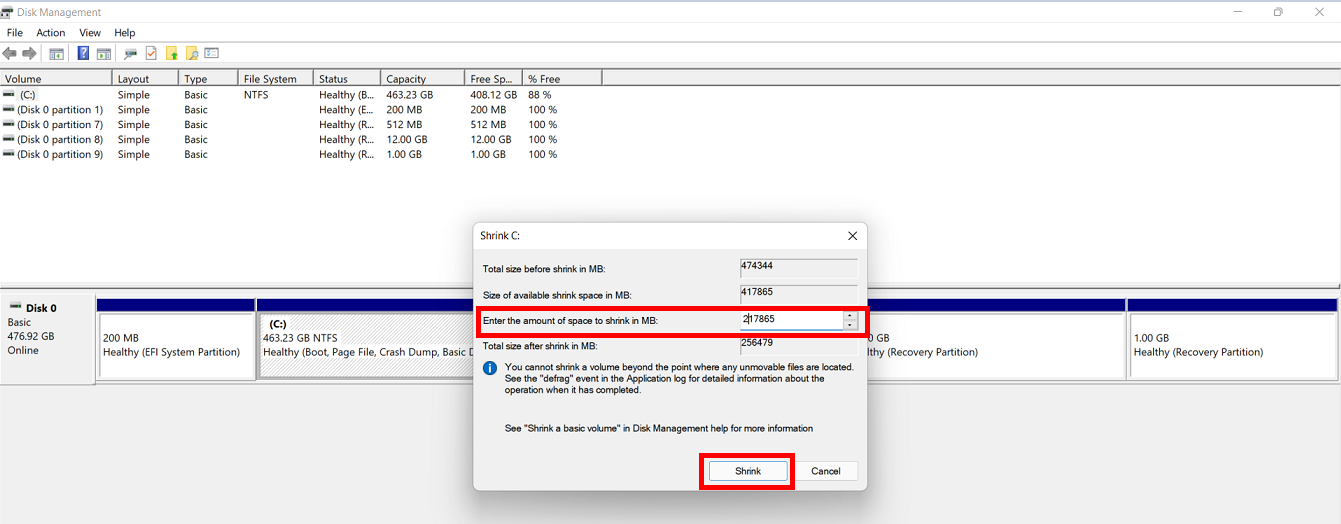
4. In the Disk Management window, select the C drive, right-click to select the compressed volume, and enter the space you want to compress in the input compression space option (the space allocated to the new drive letter, 1GB=1024MB). Select unallocated on a blank partition, right-click and select the New Simple Volume Wizard, follow the prompts to complete the new simple volume, and select the volume label D for the newly created simple volume. The space redistribution for the C drive and D drive is completed.