Problem phenomenon:
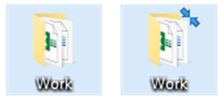
Two blue arrows appeared on the computer desktop icon.
Problem causes:
The two blue arrows in the upper right corner of the icon indicate that the file has been compressed by the system.
Solution:
To remove the blue arrows icon on a file or folder, disable compression via the file or folder’s properties dialog.
1. Right-click on the file/folder for which you have to disable compression, and click Properties.
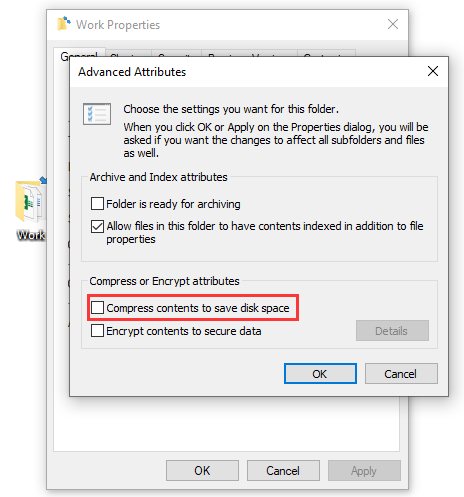
2. On the General tab, click the Advanced button.
3. In Advanced Attributes, deselect “Compress contents to save disk space.”
5. Click OK.
6. Click OK.
7. Select the option you want to use to apply the change.
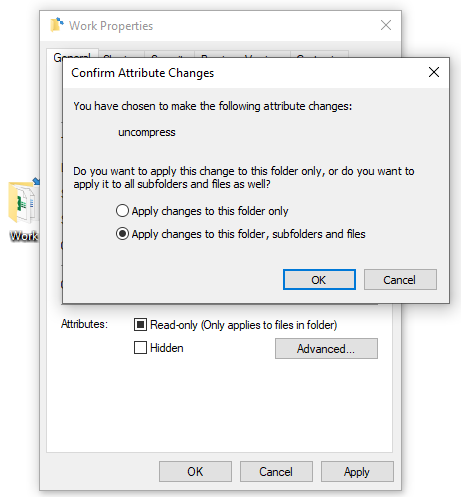
8. Click OK.
Now, you can discover that the two blue arrows on the icon have disappeared.