Set fingerprints (up to 10 fingerprints can be added) and password methods are as follows:
1. Open Settings, click Account, and open "Sign-in Options". In the login options interface, you need to set a "password" first.
2. Enter the password setting interface. After setting the password, select Fingerprint Settings on the "Account" page.
3. Enter the settings interface and select Get Started.
4. To enter the fingerprint page, you need to gently touch to join the fingerprint, not press (pressing will cause the screen to go black).
5. Enter the fingerprint from another angle and follow the prompts.
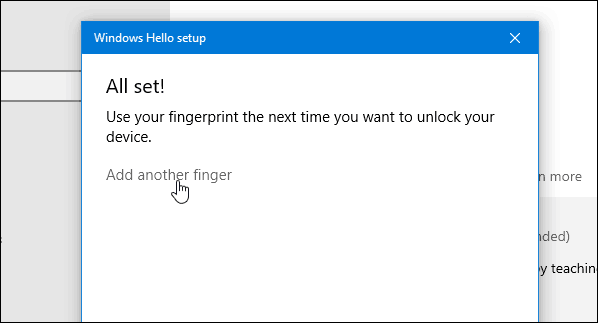
6. After entering the fingerprint, enter the "Set PIN" page and set the password according to the requirements of the PIN. After setting, it will prompt that everything is ready.
If you need to delete the fingerprint:
Open Settings > Click Account > Open Sign-in Options > Click Open > Click Windows Hello Fingerprint > Click Remove, the fingerprint login option can be removed.
Note: realme Book does not support facial recognition login.