realmeparts

How to turn off “Recommended” in the start menu in Windows 11

1,226 views
0 likes
Official Source
laptop

Operation phenomenon:

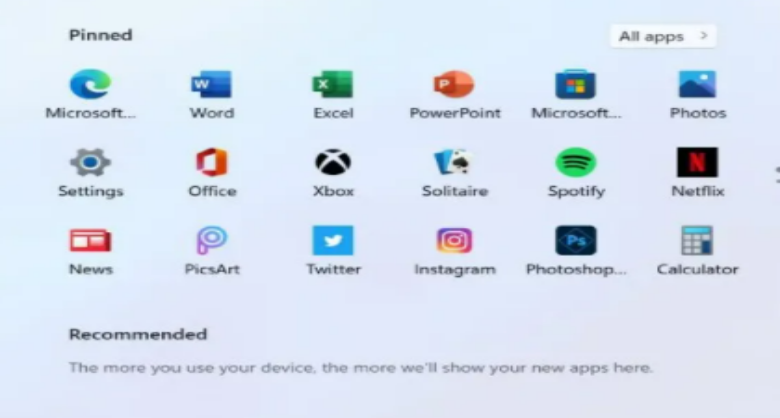
In the Windows 11 Start Menu, there is an area called "Recommended", where some recently opened items will be displayed.

Solution:

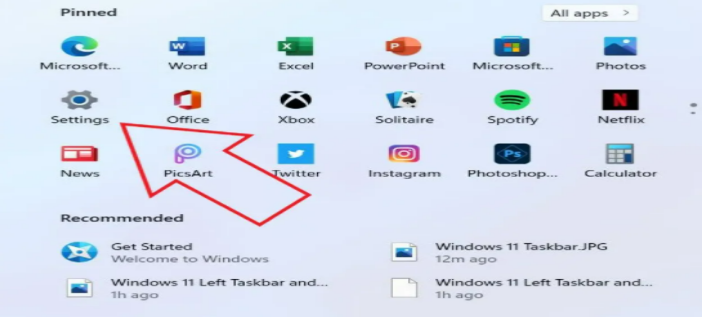
1. Start by opening up the "Settings" app from the Start Menu.
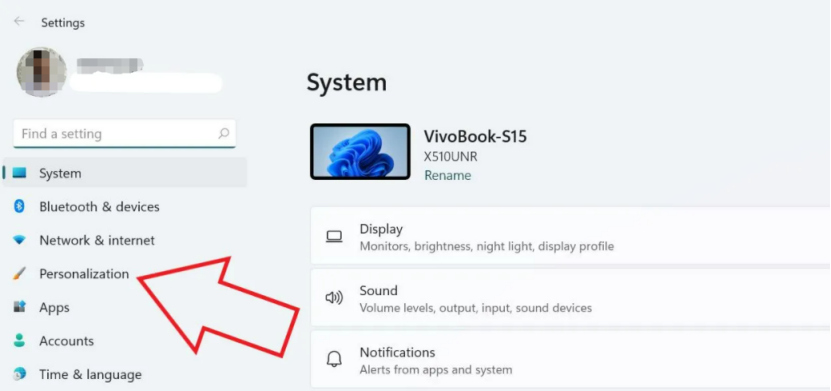
2. Find "Personalization" and click "Start". 
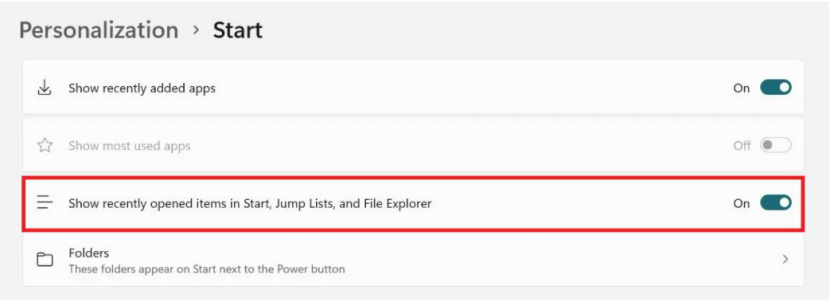
3. Turn off the "Show recently opened items in Start, Jump Listsand File Explorer".


4The files you recently opened will no longer appear as recommended on the Windows 11 start menu.
Article Reference

Official Realme documented guide #2042413

View on realme.com

Related Topics

#How to turn off “Recommended” in the start menu in Windows 11?#hide recent files Windows 11 Start menu#customize Start menu Windows 11#remove "Recommended" section Windows 11#turn off "Recommended" in Windows 11

Was this article helpful?

Your feedback helps us improve our support content.

Still need help?

Explore more articles or contact our customer support team for personlized assistance.

Visit Support Hub