realmeparts

Turn on or off Device Encryption in Windows 11

2,032 views
5 likes
Official Source
laptop

Problem phenomenon: 

A lock icon is displayed on hard disk partitions and drives.



Problem causes: 

Your device has been taken over by BitLocker's Drive Encryption, Microsoft's new protection strategy to ensure that your data won't leak if your device is lost.


Solutions:

1. Click the Start button on the taskbar and then click Settings. 
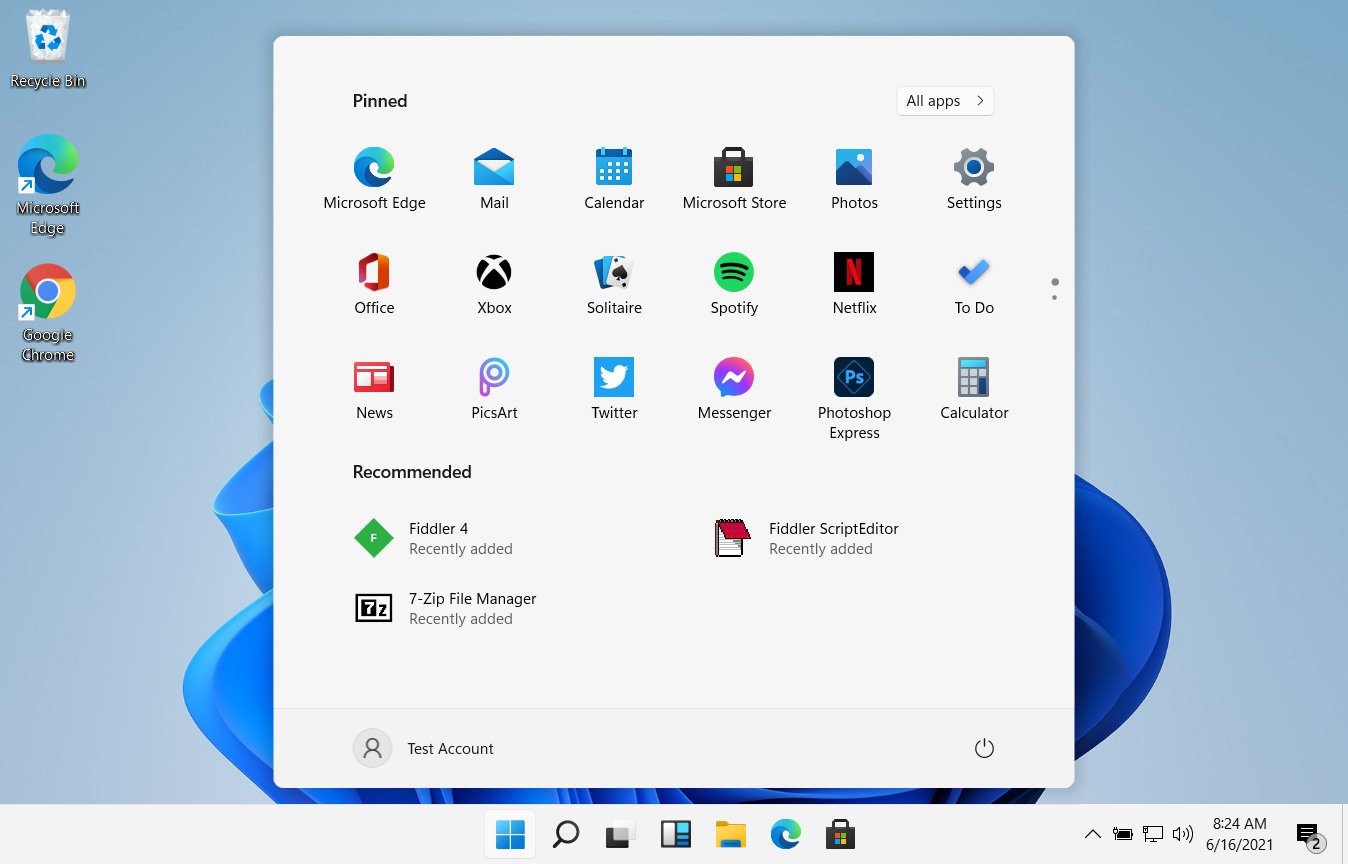
device encryption in windows 11


2. Click Privacy and Security > select Device Encryption. 
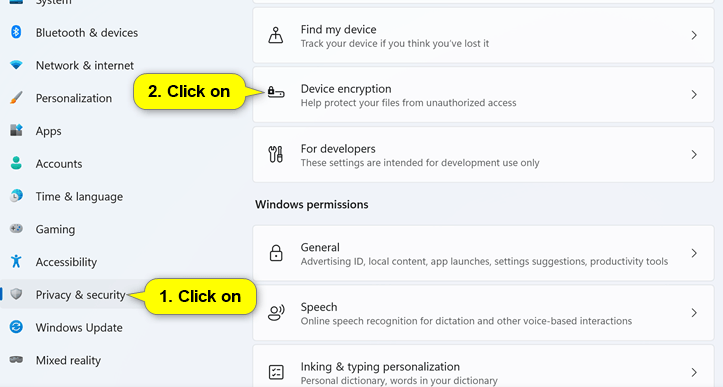
device encryption in windows 11


3. Under Device encryption, tap the switch to disable device encryption. 
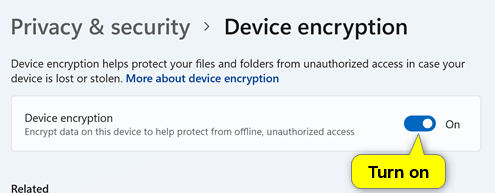
turn on device encryption in Windows 11


4. Wait for about 15 minutes to complete the decryption, during which you can continue to use the computer to complete other tasks.
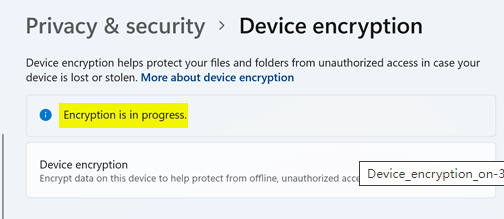
windows 11 device encryption


Article Reference

Official Realme documented guide #2053341

View on realme.com

Related Topics

#device encryption in Windows 11#turn on device encryption Windows 11#disable device encryption in Windows 11#enable Windows 11 device encryption#device encryption not showing in Windows 11

Was this article helpful?

Your feedback helps us improve our support content.

Still need help?

Explore more articles or contact our customer support team for personlized assistance.

Visit Support Hub