Problem phenomenon:
1. Clicking on the taskbar or start menu is unresponsive.
2. There is no icon on the desktop, accompanied by a black/white screen.
3. Black/white screen after power on/wake up.
Problem causes:
Explorer.exe or other system background running programs occupy too much resources and are not automatically released in time, resulting in process errors.
Solutions:
Method 1:
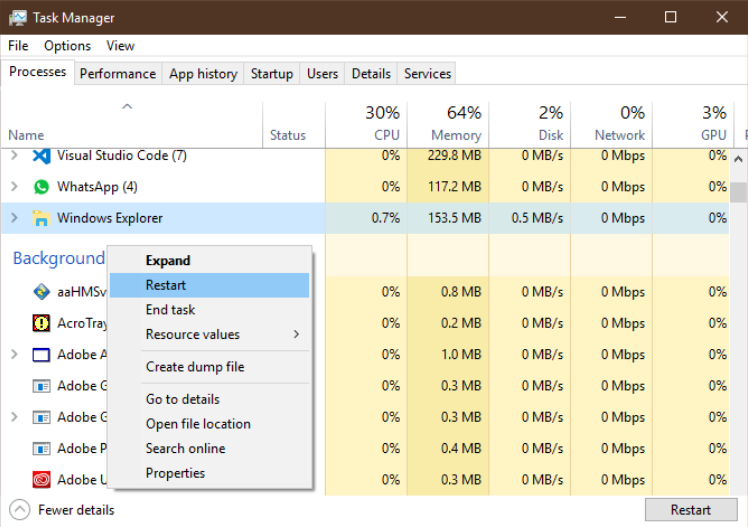
Open the Task Manager by pressing Ctrl+Shift+Esc at the same time. If there is no process page after opening, please click Details, find Windows Explorer, right-click and select Restart (R).
2. If explorer does not exist in the task manager, create a new task, manually enter "explorer" in the run dialog box, and click OK.
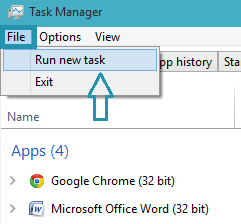
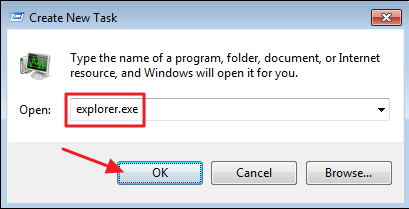
3. Restart the computer
Method 2:
If restarting the computer cannot solve the problem, please back up the data in advance and restore the factory settings to restore the computer to the factory state.
If the above solutions are invalid, please back up the data in advance and bring the relevant credentials to the realme customer service center for testing.