Operation steps:
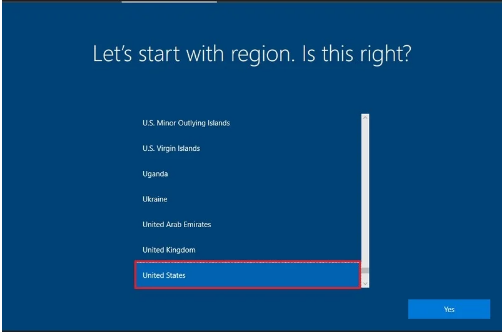
1. Select your country or region from the list, and then click Yes.
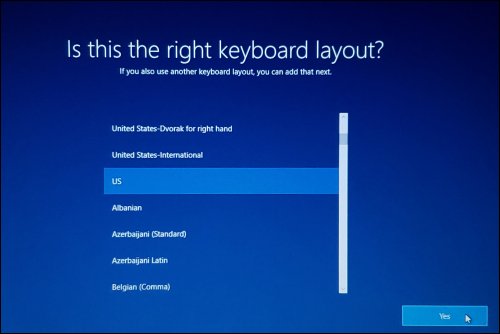
2. Select the desired keyboard layout and then click Yes.
3. You can either follow the instructions for adding another keyboard layout or click Skip.
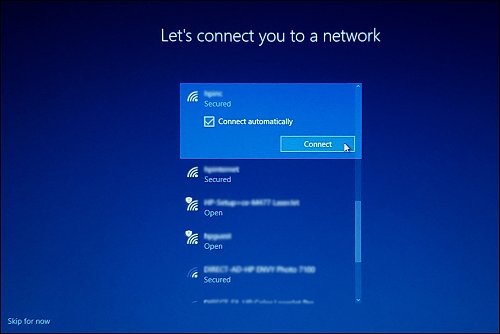
4. Select from the available networks and then click Connect.
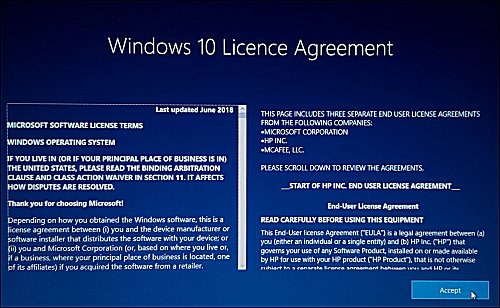
5. The Windows 10 License Agreement screen displays. After reading the license agreement, to proceed, click Accept to continue.
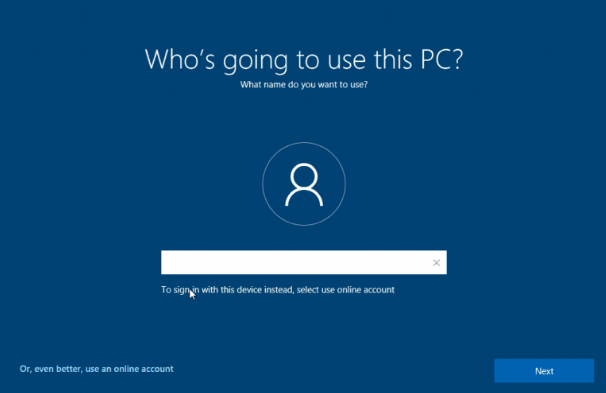
6. Enter your account name in Who's going to use this computer and click Next. Enter your password, click Next and confirm your password again and then set security questions according to the interface prompts.
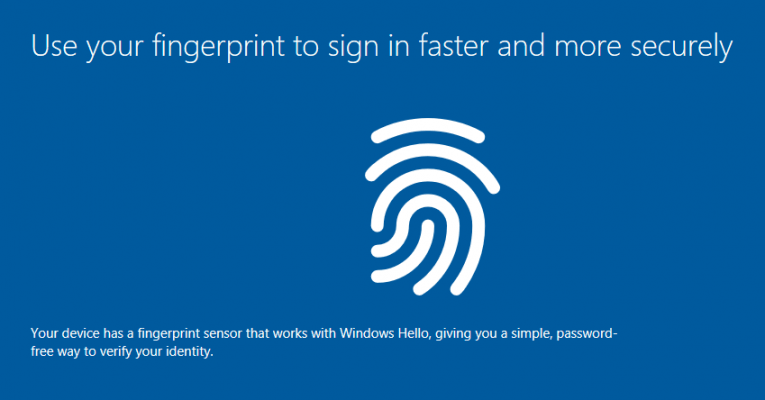
7. After setting up your account, password and security question, you will enter the Windows Hello setup interface and follow the prompts to set your fingerprint.
8. On the Choose privacy settings for your device interface, enable or disable the corresponding functions of the computer according to your needs and then click Accept.

9. On the Let Cortana help you get things done screen, click Accept or Not now. Then wait for a while for the system to complete the configuration.

10. Wait a few minutes, do not turn off the computer and then you can enter the system to operate your computer.